
Messages Home: SMS Texting App
Shivraj HubsCommunication
4.06.00 Reviews
- Version
- 1.5
- Installs
- 100.00K
- Age Rating
- Everyone
Screenshots
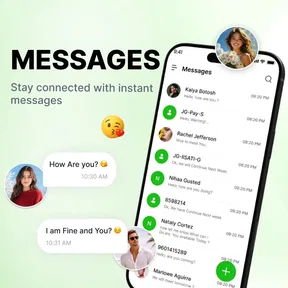
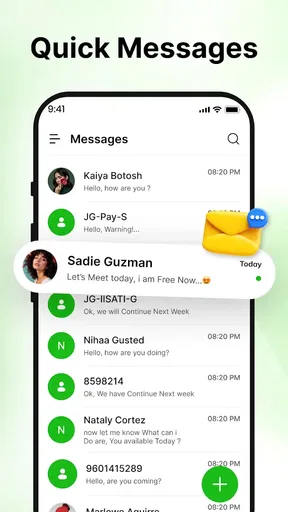
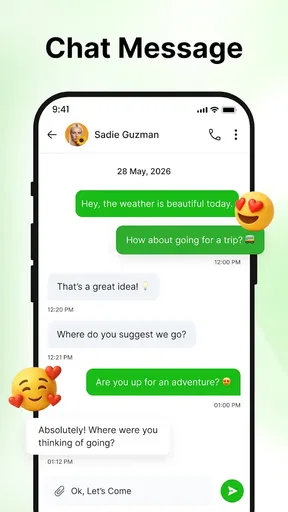
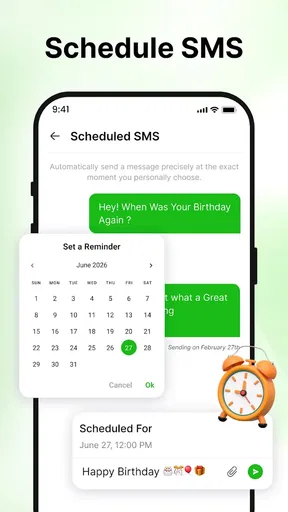
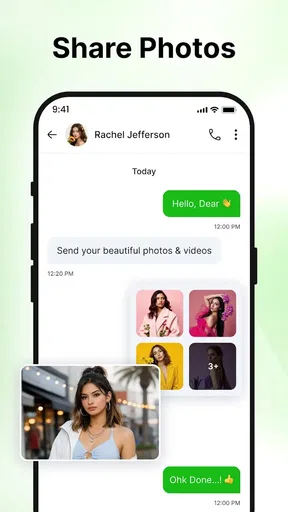
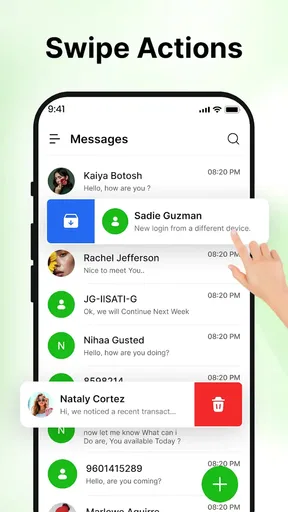
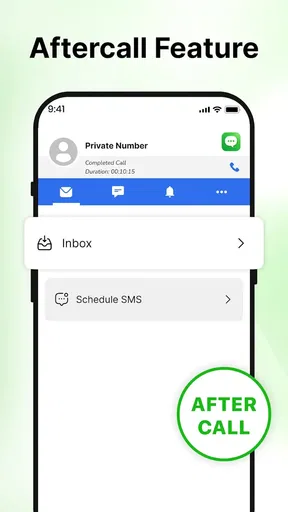
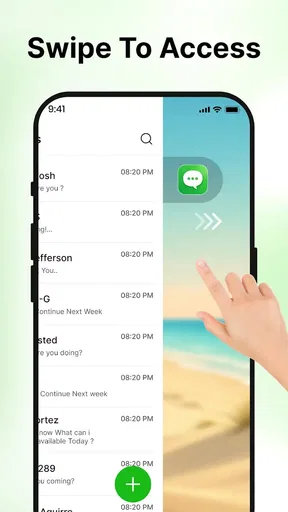
Our Review of Messages Home: SMS Texting App
 Analysis by Appyee
When I first opened Messages Home: SMS Texting App, I understood its appeal quickly: it is meant to make ordinary texting feel direct rather than overloaded. This is a free communication app from Shivraj Hubs, aimed at people who want a straightforward place to handle SMS conversations and reach their messages without navigating a crowded social platform.
The app is listed for Everyone and has passed the early stage of adoption with over one hundred thousand installs. Its average rating sits at four out of five, which suggests that many users find the basic idea useful while still leaving room for individual preferences. I would describe it as a practical alternative for someone who wants to try a dedicated texting experience, not as a replacement for every messaging service on a phone.
What to expect from the texting experience
The central promise is simple: open the app, find a conversation, and send a text. That sounds obvious, but it matters for people who do not want group feeds, public profiles, stickers, calls, or a separate account-based chat network mixed into their everyday messages. Messages Home focuses its identity on SMS and quick access, so I approached it as a utility rather than a social destination.
That distinction is important before installing it. SMS is useful when you need to contact people through their phone numbers, but it is not the same as an internet messenger. A person may receive a normal text without using this app, while richer chat functions usually depend on both people using the same service and having an internet connection. I would choose this app for direct texting habits, appointment reminders, family check-ins, and short practical exchanges—not for a full replacement for a feature-heavy chat platform.
The store summary describes easy texting, chat features, and quick access. In everyday use, I would keep expectations centered on those basics. The value is less about discovering a large ecosystem and more about reducing the distance between opening the app and reaching the conversation I need. That makes it especially approachable for a first-time user who wants fewer decisions on the first screen.
One useful way to judge it is to ask how often you send short messages that do not need a separate online identity. If your day includes “I’m on my way,” delivery updates, school pickups, work confirmations, or checking whether someone got home safely, a focused SMS tool can feel more natural than opening a social app and searching through several tabs. If nearly all your conversations happen in a service such as WhatsApp, Signal, Telegram, or iMessage, the advantage becomes smaller.
There is also a practical trade-off in choosing a newer, focused app. A simpler interface can make routine actions less intimidating, but it may not provide the breadth of controls found in long-established messaging tools. I would not install it expecting a complete communications hub. I would install it when the priority is a clean route to ordinary text conversations.
Who is likely to enjoy it
I think Messages Home is best suited to someone who wants a dedicated place for messages and prefers learning a small set of actions. It can also make sense for a person moving from a more complicated messaging application and wanting to start with the essentials. Because the age rating is Everyone, it is presented as suitable for a broad audience, although every household should still decide which communication habits are appropriate for its own needs.
It is less convincing for people who expect encrypted internet messaging, large communities, extensive media tools, or a highly developed collection of personalization options. Those users may be happier with an established alternative designed around those priorities. The important point is not whether this app has the longest feature list; it is whether its narrower purpose matches the way you actually communicate.
Getting through the first setup without guesswork
The first step is to install the app on a compatible device. Its minimum operating-system requirement is Android ten, so I would check that before spending time looking for it. The current release is version 1.5, and the app is free to use in the sense that no purchase price is listed for downloading it.
After opening it, I would take a moment to identify the main conversation area rather than tapping through every visible control immediately. A first-time user usually needs only three answers: where existing messages appear, how to start or continue a conversation, and where the send action is located. Finding those landmarks first makes the rest of the interface easier to understand.
When an app is intended for SMS, the phone’s existing message history becomes part of the setup experience. Depending on the device and system configuration, Android may ask whether the app should handle text messages as the default messaging application. I would read that prompt carefully instead of accepting it automatically. Making an app the default can change which application opens when you tap a message shortcut, so the decision should match how you want to work every day.
This is one of the most useful habits for a newcomer: do not treat the default-app choice as a permanent commitment. If the arrangement does not feel right, Android generally lets you revisit default application settings later. I would test the app with a low-pressure conversation before making it the center of my messaging routine.
Another sensible preparation step is to check whether the people you contact are stored clearly in your phone. A conversation list is easier to use when names and numbers are recognizable. If an entry appears only as an unfamiliar number, the problem may be the contact record rather than the messaging app itself. Cleaning up duplicate or outdated contacts before testing can prevent unnecessary confusion.
I would also decide what kind of message to use for the first test. A short, non-urgent text to someone who expects to hear from you is better than sending a time-sensitive instruction while you are still learning the interface. This gives you a safe way to check the recipient, compose field, send control, and resulting conversation entry in one small workflow.
Privacy and notification choices deserve attention at this stage too. I would review what appears on the lock screen and decide whether message previews are comfortable in my surroundings. That is not a special feature claim about this particular app; it is simply good practice for any SMS application, because text messages can contain addresses, access codes, appointment details, or personal information.
The first meaningful success
For me, the best first milestone is not merely opening a conversation. It is sending one ordinary message, confirming that it appears in the thread, and then finding that thread again without searching. That small loop tells you whether the app’s core organization makes sense for your routine.
I would begin by selecting a familiar contact and writing something specific but harmless, such as confirming a meeting time. Before sending, I would pause to check the recipient name and number. This is especially worthwhile when a contact has more than one number or when several people have similar names. A quick review is faster than correcting a message sent to the wrong person.
Once the message is sent, I would look at how the conversation is presented. The practical question is whether the thread gives me enough context to understand the exchange at a glance. For recurring conversations, that context matters more than decorative design. A good texting routine should help me see what I last said, what the other person replied, and where to continue.
A realistic example would be a parent leaving work and texting a family member about pickup. I could open the app, choose the saved contact, send a short update, and later return to the same thread when plans change. The benefit is not dramatic; it is the removal of small points of friction from a task repeated throughout the week.
Another useful test is replying to an incoming message rather than starting a new one. New users sometimes assume every message requires a fresh composition screen, when the safer action is to open the existing conversation and continue there. Keeping the exchange together makes it easier to follow details such as times, locations, or changes of plan.
If the first message does not behave as expected, I would separate interface trouble from network trouble. SMS delivery can depend on the phone’s mobile service and account configuration, so an app cannot make a message arrive when the device has no usable cellular connection. I would first check whether the message remains pending, whether other texts work, and whether the recipient’s number is correct before blaming the interface.
Small habits that make the app easier to live with
My first practical tip is to use the app’s quick-access approach deliberately. Instead of treating the conversation list as something to scroll through randomly, I would keep the people I contact most often easy to recognize by using clear contact names in the phone address book. This turns the opening screen into a useful launch point rather than a long directory.
My second tip is to keep SMS and internet chat expectations separate. If a contact asks for a photo, a group discussion, or a long exchange with rich media, I would switch to the service that both of us already use for that purpose. Messages Home can remain the place for direct texting without forcing every type of conversation into one tool.
My third tip is to use a low-risk message as an interface check after a major phone change, such as moving to another device or adjusting default applications. A brief confirmation to a trusted contact can reveal whether the conversation opens correctly, whether replies return to the expected place, and whether notifications are appearing in a way you can live with.
A fourth insight is that simplicity can be valuable for shared household routines. If several family members use different online chat services, SMS may be the common denominator. A dedicated app can help one person stay focused on those basic exchanges instead of managing several accounts. The compromise is that the experience will not necessarily match the advanced tools available in a specialized internet messenger.
Where first-time users may hesitate
The most likely confusion comes from the difference between an SMS application and a chat platform. The word “chat” can suggest typing indicators, online presence, synchronized accounts, or internet-based delivery. I would not assume those behaviors simply because the app includes chat-oriented wording. The safest mental model is a focused messaging tool that helps you access and manage ordinary texting.
Users may also wonder why a message does not appear instantly. Traditional texting is tied to mobile service, not only to the app’s interface. If the phone is in an area with poor coverage, if the account has a service issue, or if the recipient’s number is wrong, changing screens will not solve the underlying problem. Checking the phone connection and the conversation details is the sensible next move.
Another point of friction can arise when more than one messaging app is installed. Android may route new messages, shortcuts, or replies through whichever application is selected as the default. If Messages Home seems not to be handling an action, I would inspect the phone’s default-app setting before reinstalling anything. This is a system-level choice, and understanding it prevents a lot of unnecessary troubleshooting.
Notification behavior can likewise be misunderstood. A notification may be controlled by both the app and the operating system, so a quiet phone, a restricted background setting, or a disabled notification category can change what you see. I would check the app’s notification permission and the phone’s notification settings together. That two-level check is more reliable than assuming the application has failed.
Some readers will ask whether the app is suitable for sensitive conversations. I would be cautious here. SMS is convenient, but it is not the same category as a privacy-first messenger built around end-to-end encrypted chats. For ordinary coordination, it can be perfectly practical. For confidential discussions, I would choose a service specifically designed for that need and make sure the other person uses it too.
People may also ask whether installing it means abandoning their current messaging application. It does not have to be an all-or-nothing decision. You can try it with a limited routine, compare how quickly you find conversations, and decide whether making it the default improves your day. If your existing app already gives you the organization and access you want, switching may add more adjustment than benefit.
Those who rely heavily on group chats should think carefully before moving. SMS group behavior can differ from internet chat groups, and the experience may not provide the same controls or media handling that dedicated group platforms offer. I would keep a group service for active communities and use this app for direct, practical messages unless testing proves that it fits a particular group.
How it compares with familiar alternatives
Compared with a full internet messenger, Messages Home is easier to understand if your main requirement is phone-number texting. An internet messenger is usually stronger for multimedia conversations, group coordination, cross-device accounts, and richer presence features. Its advantage is breadth; the advantage here is focus and the possibility of reaching people through ordinary SMS habits.
Compared with the phone maker’s built-in messaging application, the decision is more personal. The built-in option may already be deeply connected to the device and may require no change in routine. Messages Home becomes interesting when its layout or quick-access approach feels more comfortable to you. I would judge it by the number of steps required for your most common action, not by the number of buttons shown on screen.
Compared with privacy-focused alternatives, the priorities are different. A privacy messenger may be the better choice for protected conversations, but it normally requires the other person to join the same service. SMS is more universal for reaching a phone number, while a dedicated secure service can offer stronger privacy expectations. Neither choice is automatically best for every conversation.
The app’s audience size also gives me a modest reason to take it seriously without treating popularity as proof of perfection. It has more than one hundred thousand installs and six written reviews, alongside its four-point average from 286 ratings. Those figures show that people are using and evaluating it, but my decision would still come down to whether the first-message workflow feels reliable on my own phone.
My next step after the first test
After sending the first successful text, I would use Messages Home for a small, clearly defined trial: direct conversations with a few regular contacts. I would pay attention to how quickly I can return to an existing thread, whether the contact names are clear, and whether notifications arrive in a way that suits my routine. This is more informative than judging the app after one glance.
I would keep the trial focused for a day or two of normal communication rather than moving every conversation immediately. During that period, I would note where the app saves time and where my current messenger still feels better. For example, a simple family update may fit perfectly, while a group project with files and many participants may belong elsewhere.
If the app feels natural, the next step is deciding whether it should become the default handler for SMS. I would make that change only after confirming that I can find old threads, reply to incoming texts, and recognize the send status without hesitation. If any of those actions remain unclear, keeping the existing default while learning the interface is the safer choice.
If it does not suit you, that does not mean the app is bad. It may simply mean your communication needs are broader than its focused purpose. Someone who lives in large group chats, needs strong privacy features, or depends on extensive media sharing should probably stay with a service built around those priorities. The right test is whether the app solves your actual daily problem, not whether it includes every modern messaging feature.
My overall impression is favorable for the right user. Messages Home is a free SMS and communication app from Shivraj Hubs that keeps its appeal close to the basics: get to a conversation, write a message, and continue the exchange. The current version, 1.5, is available for devices running Android ten or later, and the Everyone rating makes it approachable as a general-purpose option.
I would recommend starting with one familiar contact and one ordinary message. That simple test reveals almost everything a first-time user needs to know: whether the layout feels clear, whether the app fits your texting habits, and whether its quick-access approach is genuinely more convenient than what you already use. For direct SMS, it is worth trying; for advanced online chat or privacy-sensitive communication, I would choose a more specialized alternative.
Verdict
Strengths of Messages Home: SMS Texting App
- Clean, familiar interface makes everyday texting easy to navigate.
- Supports customizable themes and conversation backgrounds.
- Quick access to contacts and recent conversations saves time.
- Useful notification controls help reduce interruptions.
- Works as a practical alternative to many feature-heavy messaging apps.
Limitations of Messages Home: SMS Texting App
- Some features may depend on your phone’s default SMS settings.
- Advertising can make the free experience feel less polished.
- Advanced messaging features may vary by carrier and device.
- Privacy options are more limited than in end-to-end encrypted apps.
- Media sharing may be less reliable than in internet-based messengers.
Similar Picks in This Category
View All
Google Messages
Google LLC4.6

Gmail
Google LLC4.1

Google Meet
Google LLC4.4

Google Chrome
Google LLC4.1

WhatsApp Messenger
WhatsApp LLC4.6

Carrier Services
Google LLC4.2
Frequently Asked Questions
What is Messages Home: SMS Texting App, and what can I use it for?
Messages Home: SMS Texting App is designed to manage your everyday text conversations from one central inbox. After testing its main features, I found it useful for sending and receiving SMS and, depending on your carrier and device, MMS messages such as photos or group texts. It can also help organize conversations, search messages, and personalize the appearance of the messaging screen. Available features may vary by Android version, device manufacturer, and mobile provider.
Is Messages Home: SMS Texting App free to download and use?
The application may be available to download without an upfront charge, but messaging itself is not necessarily free. Standard SMS and MMS fees can still apply according to your mobile carrier’s plan, especially when sending picture messages or texts internationally. Some versions may also include advertising, optional purchases, or premium customization features. Before using it regularly, check the app’s store listing and your carrier terms to understand any possible costs.
Does Messages Home replace my phone’s default messaging application?
Messages Home can generally be selected as the default SMS application on compatible Android devices, allowing it to handle incoming and outgoing text messages instead of the preinstalled app. During setup, Android may request permission to access SMS, contacts, notifications, and phone-related functions. You should review these permissions carefully and make sure the app supports your device before switching. You can usually return to the original messaging app through your system settings.
Is Messages Home: SMS Texting App safe and private to use?
The app needs access to sensitive information, including text messages, contacts, notifications, and possibly media files, because these permissions are required for messaging features. Before installing, review the developer information, privacy policy, data-safety section, and requested permissions in the official app store. Avoid downloading modified versions from unofficial websites. If privacy is especially important to you, check whether messages are stored locally, synchronized online, or shared with third-party services.
What should I check before downloading Messages Home on my device?
Before downloading Messages Home, confirm that your phone runs a supported Android version and has enough storage for the application and message attachments. Also verify that your device has an active SIM card and a carrier plan capable of sending SMS or MMS. Read recent user reviews for reports about notifications, battery use, advertisements, or compatibility. Finally, back up important conversations before changing your default messaging app, particularly if your current app has special backup features.
